Reservoir on iPhone
1Save something
From any app
- Step 1: In Safari, YouTube, a podcast app, Photos or anywhere else, tap Share.
- Step 2: Choose Reservoir in the row of apps. If it is not there, scroll to the end of the row, tap More, and add it.
- Step 3: On Save to Reservoir you can add a note or pick a collection. Both are optional.
- Step 4: Tap Save. The sheet answers Saved to Reservoir.
From inside Reservoir
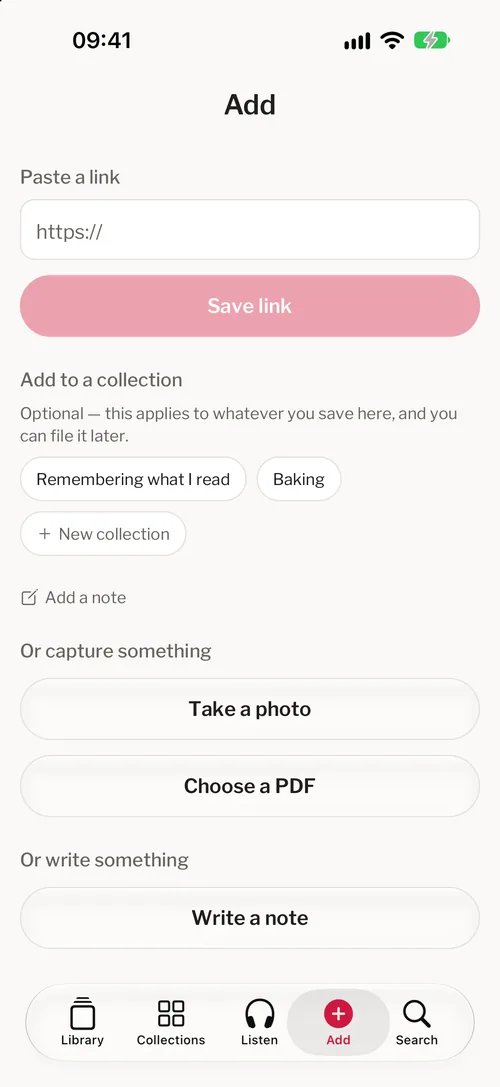
- Step 1: Tap the Add tab.
- Step 2: Paste a link and tap Save link.
- Step 3: Or tap Take a photo, Choose a PDF or Write a note.
From Safari, keep just a passage
- Step 1: Select the passage on the page, then tap Share and choose Reservoir.
- Step 2: The sheet shows the words you selected and where they came from.
- Step 3: Tap Save. It answers Saved as a note. Only the passage is saved, not the page.
2Find it again
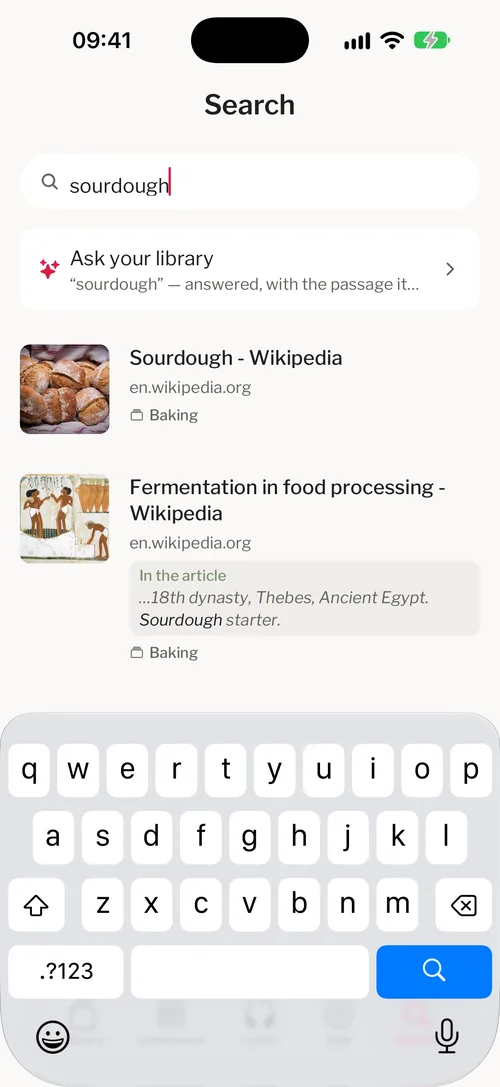
- Step 1: Tap the Search tab and type in Search everything. Results start at two letters.
- Step 2: Each result says where the match was found: in the article, in your note, in the summary, or in text from a photo.
- Step 3: Tap a result to open it.
- Step 4: Search runs on the phone, so it works with no connection.
3Read, and highlight
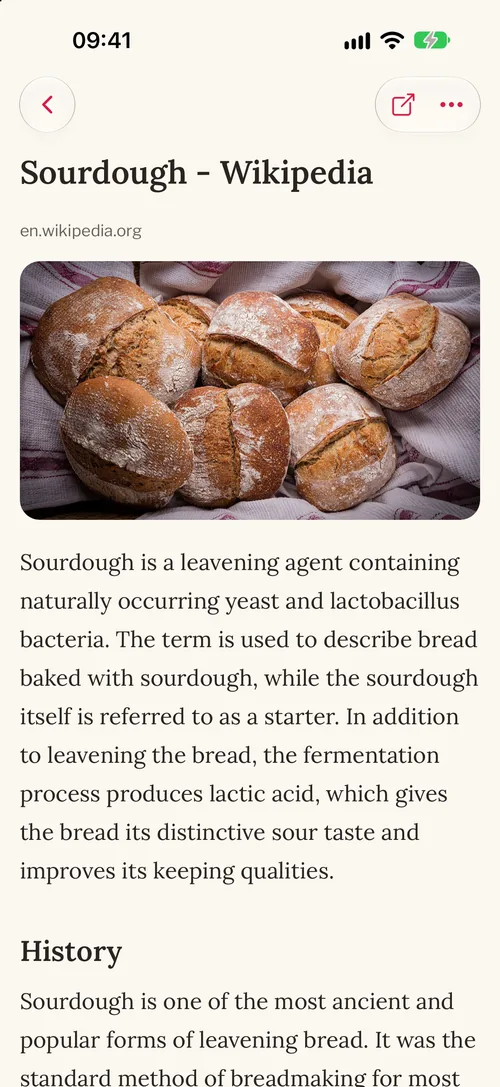
- Step 1: Tap a save to open it. Articles open as clean text.
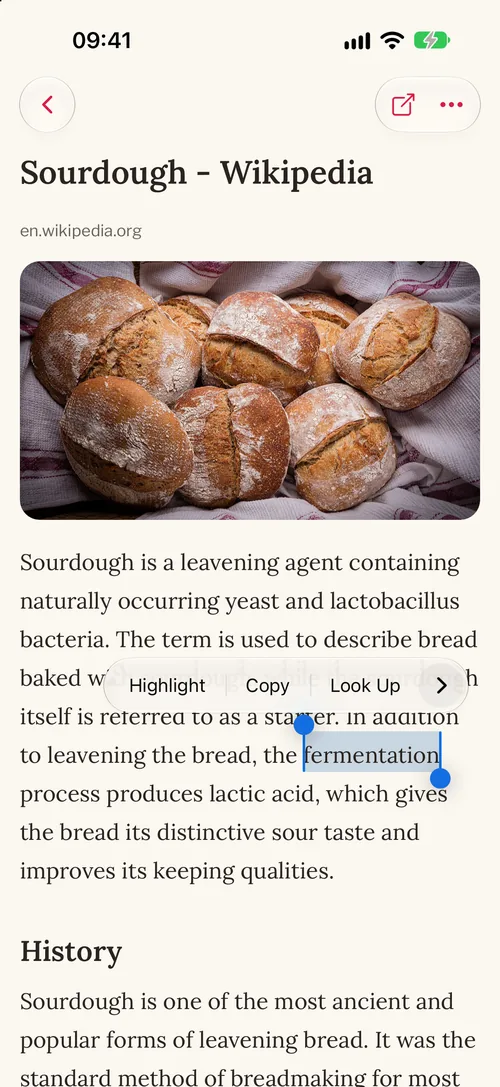
- Step 2: Press and hold on the text to select a passage, then tap Highlight in the menu.
- Step 3: To take a highlight away, select inside it and tap Remove highlight. Comment adds a comment to it.
- Step 4: For a note on the whole save, tap the ⋯ button at the top and choose Add a note.
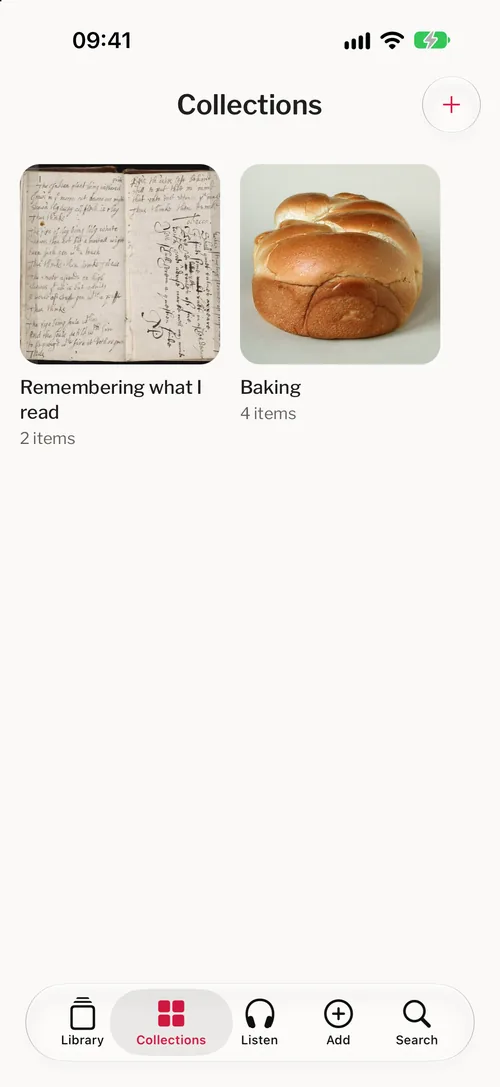
4Organise
- Step 1: To make a collection, tap the Collections tab, then the + at the top. Name it and tap Create collection.
- Step 2: To file one save, press and hold it in your library and tap Add to collection.
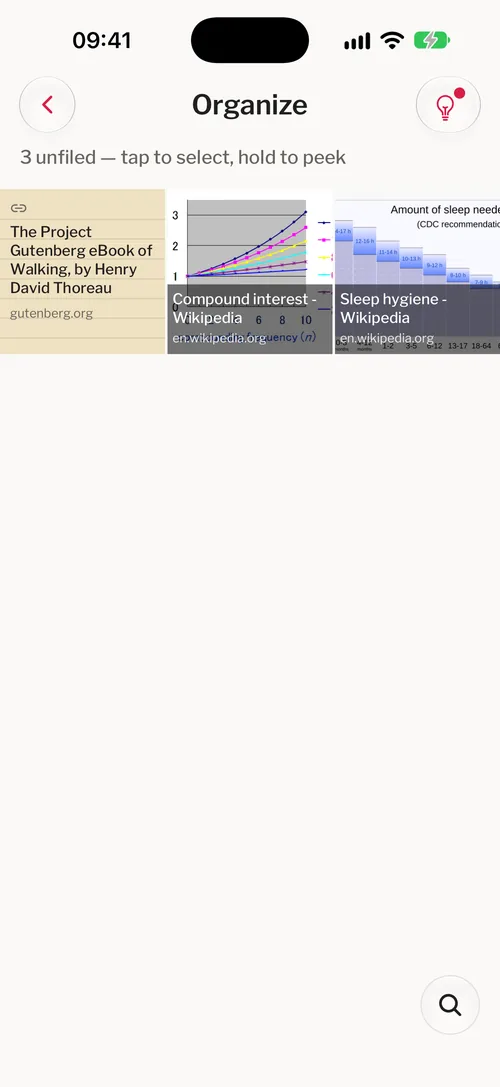
- Step 3: To file several, tap Organize beside Unfiled in your library, tap the saves, and tap File.
What Reservoir suggests
- Step 1: On Organize, tap the light bulb at the top.
- Step 2: Each suggestion names a collection and the saves it would hold. You can change the name.
- Step 3: Tap the tick to accept it, or the cross to never be offered that grouping again. Reservoir never files anything by itself.
5Bring a library in
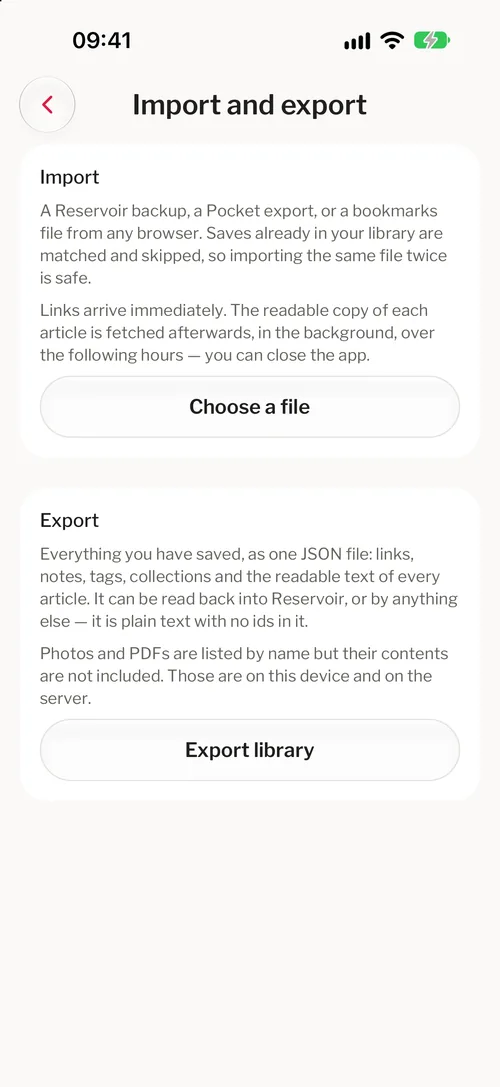
- Step 1: Tap your picture at the top right of Library to open Settings.
- Step 2: Tap Import and export.
- Step 3: Tap Choose a file and pick a Pocket export, a bookmarks file from any browser, or a Reservoir backup.
- Step 4: It says how many were added and how many you already had. The readable text of each link follows over the next few hours.
6Share a save
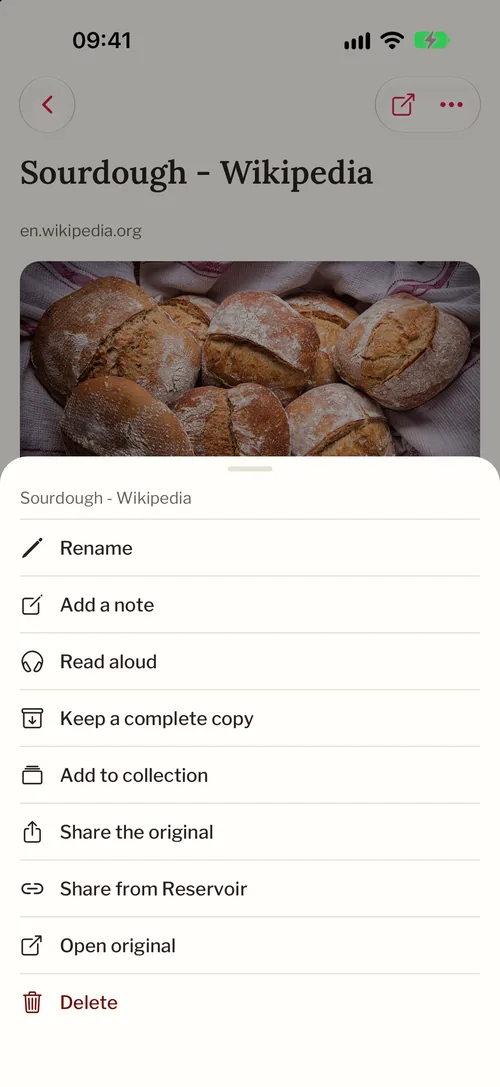
- Step 1: Open the save, tap the ⋯ button at the top, and choose Share from Reservoir.
- Step 2: Under General access, choose Anyone with the link, or Only people with their own link after adding a person.
- Step 3: Tap the link to copy it, or tap Share link to send it.
- Step 4: To take it back, tap Stop sharing. Every link to that save stops working.
A whole collection
- Step 1: Open the collection and tap the share icon at the top.
- Step 2: Send the link. Stop sharing appears on the collection for when you want it back.
What has been shared
- Step 1: In Library, find Manage Share and tap See all.
- Step 2: Switch between Shared with you and Shared by you.
7Recall, the digest and Listen
Recall
- Step 1: Tap the Search tab, type your question, and tap Ask your library.
- Step 2: The first time, tap Turn on Recall. It asks because it sends saved text to a language model.
- Step 3: The answer comes from your saves, with the passages it used. It needs a connection.
The weekly digest
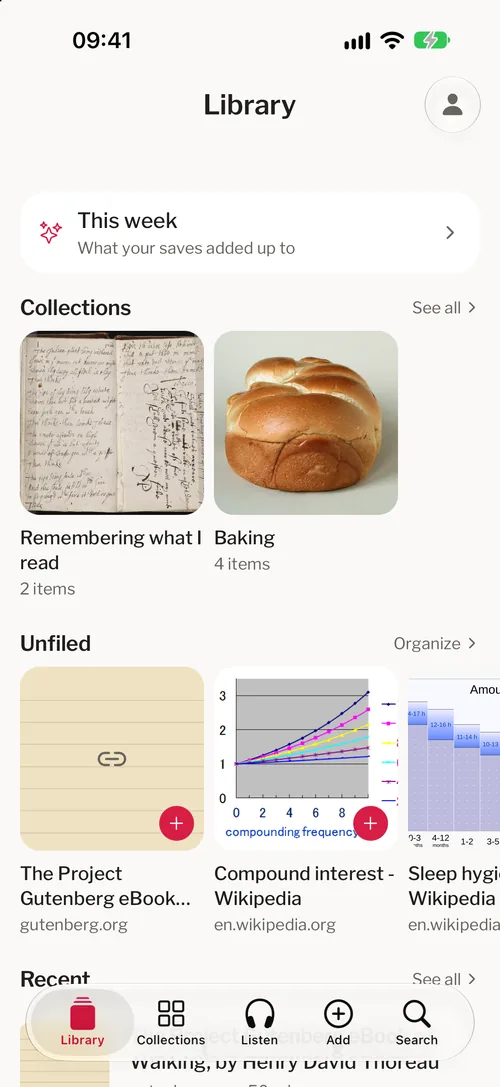
- Step 1: In Library, tap the This week card. It appears once you have saved something.
- Step 2: The first time, tap Turn on cloud synthesis.
- Step 3: Tap Write this week’s digest. It needs at least three saves from the last seven days.
Listen
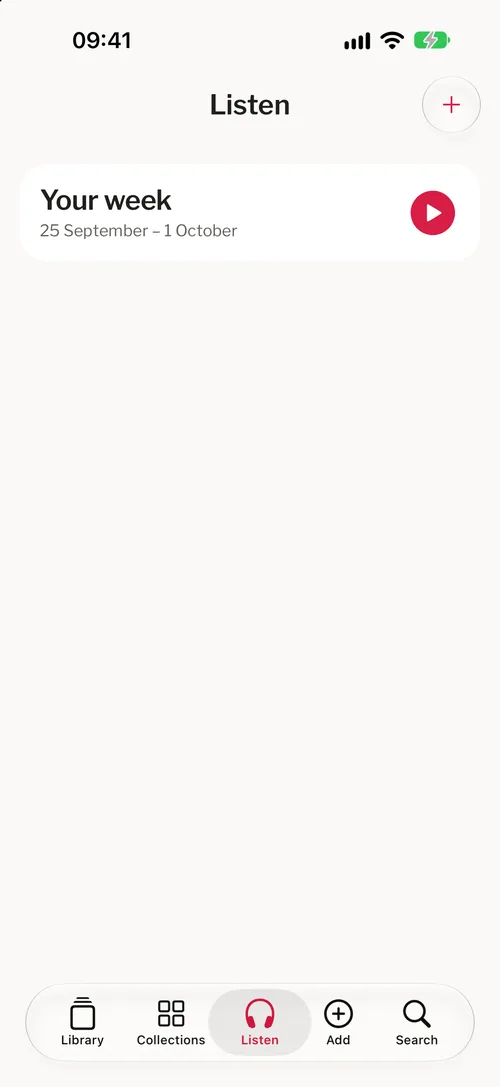
- Step 1: Tap the Listen tab to hear Your week as one programme.
- Step 2: For a single save, tap the ⋯ button on it and choose Read aloud.
- Step 3: The voice downloads the first time you listen, and the audio is made on your phone.
8Your account, and getting help
- Step 1: Tap your picture at the top right of Library to open Settings.
- Step 2: Contact us sends a message to the person who makes Reservoir. Say what happened and tap Send.
- Step 3: Trash keeps a deleted save for 30 days. Tap Restore to bring one back.
- Step 4: Sign out and Delete account are at the bottom.
Still stuck?
Write to us. The reply comes from the person who built it.