Reservoir in your browser
1Save something
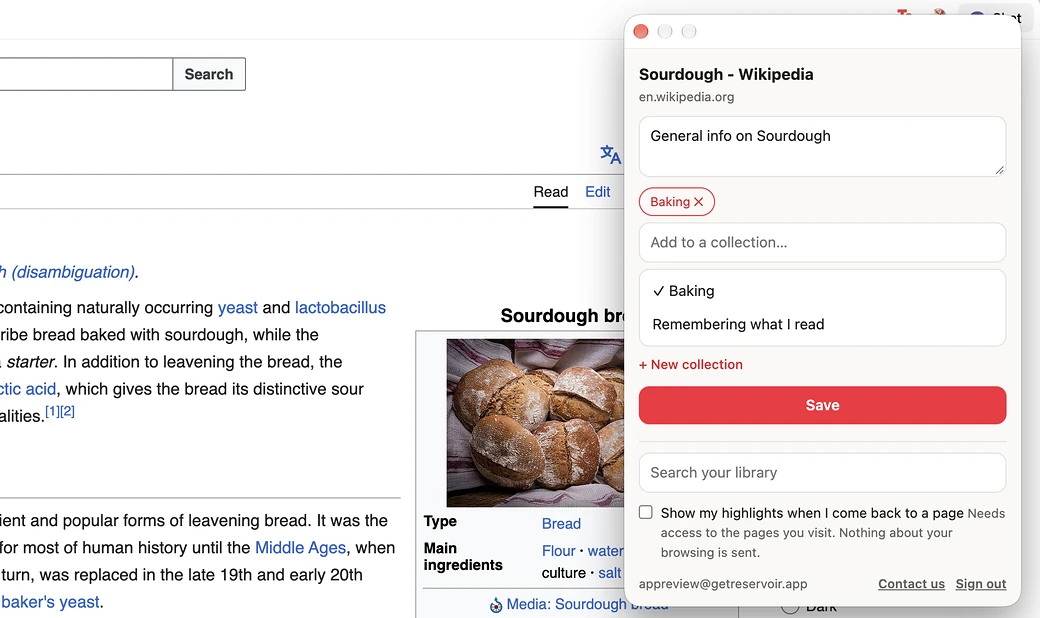
- Step 1: On the page you want to keep, click the Reservoir button in the toolbar. Ctrl+Shift+S, or Command+Shift+S on a Mac, opens it too.
- Step 2: The first time, sign in with the same account as the app. An account is made on the website or in the app, not here.
- Step 3: If you like, say Why you’re keeping this.
- Step 4: Click Save. The popup answers Saved.
From the right-click menu
- Step 1: Right-click the page and choose Save this page to Reservoir. On a link, choose Save this link to Reservoir.
- Step 2: To keep only a passage, select it, right-click, and choose Save as a note in Reservoir. The note remembers the page it came from.
- Step 3: A message on the page says Saved to Reservoir. If it says Not saved, open the Reservoir button to see why.
A page you already saved
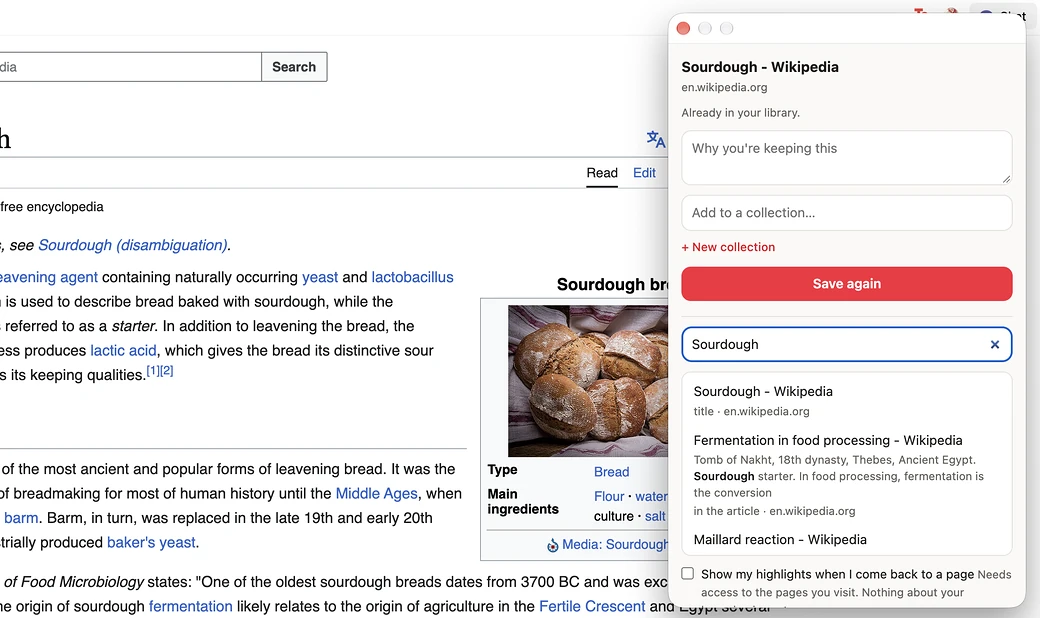
- Step 1: The popup says Already in your library.
- Step 2: Click Save again to replace its text with the page as you see it now.
2Find it again
- Step 1: Click the Reservoir button and type in Search your library, two letters or more.
- Step 2: Press Enter.
- Step 3: Click a result. It opens in your library on the web, in a new tab.
3Read, and highlight
Highlight on the page
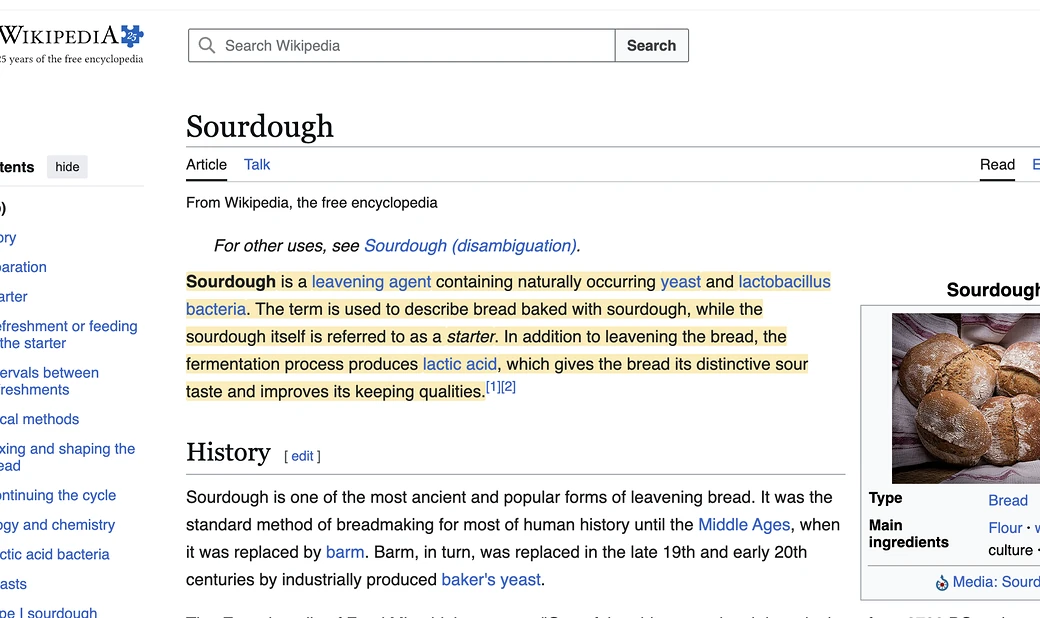
- Step 1: Select a passage, right-click, and choose Highlight in Reservoir. Or select it, click the Reservoir button, and click Highlight the selection.
- Step 2: The page is saved too, if it was not already.
- Step 3: To remove a highlight, point at it and click the ×. The button beside it adds a comment.
See your highlights when you come back
- Step 1: Open the Reservoir button on a page you have highlighted. Your highlights are drawn on it again.
- Step 2: To be offered them without opening it, tick Show my highlights when I come back to a page and allow the permission your browser asks for.
- Step 3: On a later visit, a message offers Show. The pages are matched on your computer; Reservoir is never told which pages you visit.
Not here yetReading a save happens in your library: a search result opens it on the web. See this task on Web →
4Organise
- Step 1: In the popup, before you save, click Add to a collection…
- Step 2: Click a collection. For a new one, click + New collection, type its name, and click Create.
- Step 3: Click Save.
Not here yetA save is filed as you save it. Filing one you already have is on the web and the iPhone. See this task on Web →
5Bring a library in
Not here yetThe extension saves the page you are on. Bringing in a library from another app is on the web and the iPhone. See this task on Web →
7Recall, the digest and Listen
Not here yetThe extension saves, highlights and searches. Recall is on the web and the iPhone; the digest and Listen are on the iPhone. See this task on Web →
8Your account, and getting help
- Step 1: Click the Reservoir button. The bottom of the popup shows the account you are signed in to.
- Step 2: Contact us opens the form on the website.
- Step 3: Sign out is beside it.
Not here yetYour name, password, export, Trash and deleting your account are in Settings on the web and the iPhone. See this task on Web →
Still stuck?
Write to us. The reply comes from the person who built it.